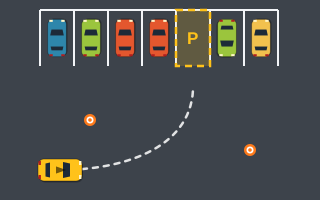
All the games on Play Parking share one engine, so the controls are the same everywhere. On a computer you drive with W A S D or the arrow keys; on a phone or tablet you use four on-screen buttons under the game. A handful of extra keys handle pause, restart, camera and sound.
This page is the complete reference. If you want deeper advice for one input method, see the dedicated guides for keyboard controls and mobile touch controls.
Full control reference
| Action | Keyboard | Touch / mouse button |
|---|---|---|
| Accelerate | W or ↑ | GAS |
| Brake, then reverse when held while stopped | S or ↓ | BRAKE / REV |
| Steer left | A or ← | ◀ |
| Steer right | D or → | ▶ |
| Brake only (never reverses) | Space | — |
| Pause | P | — |
| Restart current level | R | — |
| Camera: Follow / Overview | C | — |
| Sound on/off | M | — |
The on-screen buttons work with a mouse too: press and hold them just like you'd hold a key.
The two brakes, explained
The most important detail in the whole control scheme is that there are two ways to brake, and they behave differently.
- S / ↓ / BRAKE / REV slows the car. If you keep holding after the car stops, it starts driving in reverse.
- Space only brakes. Holding it never puts the car into reverse.
There's no gear selector; reverse is simply "keep holding brake." That's quick, but it can surprise you when you only meant to stop at the edge of a bay and the car starts creeping backward. When you're settling into a bay and need the car perfectly still for the "Hold…" indicator, Space is the safer choice on a keyboard. On touch, tap BRAKE / REV rather than holding it once you're nearly stopped.
Steering controls
Steering follows the bicycle-style model explained in how vehicle steering works. Three rules matter for the controls:
- The car only turns while moving, so pressing left or right at a standstill does nothing.
- Steering self-centers when you release it.
- In reverse, steering left swings the rear of the car to the left.
Tap steering for small angle fixes; hold it for full turns.
Utility keys worth learning early
C: camera toggle
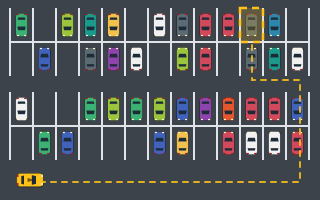
The Follow camera stays on your car. The Overview camera shows the whole area. In big layouts like Parking Lot, where the lots are larger than the screen, switching to Overview for a moment lets you plan a route to the bay. When the bay is off screen in Follow mode, an arrow at the screen edge points toward it.
R: restart
If a level has gone badly, such as several collisions early on, R restarts it straight away. That's handy in games with a collision limit, where a failing attempt is better replaced than finished.
P: pause
Pauses the game. Useful before a tricky move in a timed game like Parking Rush if you need to step away.
M: sound
Toggles game sound on and off.
When keys don't respond
Keyboard input only steers the car while a game is running. On any other part of the site, and before a game starts, the arrow keys scroll the page as usual. If your arrows are scrolling instead of steering, start the game first. That design keeps the site easy to browse with a keyboard.
On touch screens, page scrolling is blocked while your finger is on the game area or the control buttons, so a steering swipe won't drag the page around.
Gas control without a throttle pedal
Keys and buttons are either pressed or not, so there's no half-throttle. Speed control comes from rhythm instead: hold GAS or W to build speed in open space, then release and let friction take over as you near the bay. Short, repeated presses give a slow creep that's ideal for the final few car lengths. Since the car turns more sharply at low speed, that creep also makes your steering more effective right where precision counts.
The same rhythm matters in reverse. Top forward speed is roughly twice the reverse speed, so backing up is already slower, but brief holds of the brake-and-reverse input still give the most control when you're lining up against a neighbor.
A sample control sequence
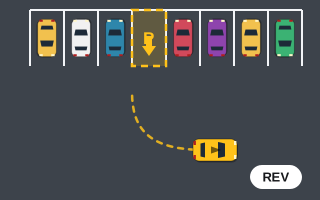
Here's how the controls combine in a typical reverse-in bay in Reverse Parking, where you start facing away from or past the bay:
- Hold W to roll forward until the rear of the car is just past the bay entrance.
- Hold S; the car stops, then begins reversing.
- Hold A or D toward the side the bay is on, so the rear swings in.
- Release steering as the car lines up; it self-centers.
- Tap Space to stop fully inside and wait for "Hold…" to fill.
If you're brand new to the site, how to play parking games walks through the goal, the bay rules and the HUD before you worry about technique.