Every Play Parking game runs in a mobile browser with no download. On a phone or tablet you drive with four on-screen buttons under the game: ◀ and ▶ to steer, BRAKE / REV to slow down and then reverse, and GAS to accelerate. Press and hold them the same way you'd hold a key on a keyboard.
The layout is simple, but touch play has its own quirks: you can't feel the buttons, your thumbs cover part of the screen, and there's no separate brake that refuses to reverse. Here's how to get comfortable.
What each button does
| Button | Action | Keyboard equivalent |
|---|---|---|
| ◀ | Steer left | A / ← |
| ▶ | Steer right | D / → |
| BRAKE / REV | Brake; held after stopping, drives in reverse | S / ↓ |
| GAS | Accelerate | W / ↑ |
The same buttons also respond to a mouse, so they work on a desktop too if you prefer clicking. Keyboard-only extras such as pause, restart and the camera toggle are listed in the complete controls guide.
Holding your phone
A natural grip puts the steering buttons under one thumb and the pedals under the other. Two thumbs, two jobs: one steers, one manages speed. Try not to use a single thumb for everything; switching between GAS and BRAKE / REV with the same thumb that's steering makes it hard to turn and slow down at the same moment, which is exactly what a bay entry needs.
If the game area feels cramped in portrait, try rotating the device and see whether the view suits you better. Either way, keep your thumbs low on the buttons so they don't cover the car.
The BRAKE / REV button needs care
On a keyboard, Space brakes without ever reversing. There's no touch equivalent, so the one brake button does both jobs. Hold it while moving and the car slows; keep holding after it stops and the car starts backing up.
That's efficient for reverse maneuvers, but it creates a common touch mistake: overholding the button at the end of a forward park. The car stops, then drifts backward, and the "Hold…" indicator never completes. The fix is to tap BRAKE / REV as you approach the final spot, releasing between taps, and to lift your thumb completely once the car is still.
Touch steering tips
- Steer while rolling. The car only turns while moving, so holding ◀ at a standstill does nothing. Roll gently with GAS or reverse while you steer.
- Use short presses near the bay. Steering self-centers when released, so brief presses make small corrections.
- Slow down to turn tighter. Turning is sharper at low speed. If you're running wide in a corner, ease off GAS rather than holding steering harder.
- In reverse, steer toward where the rear should go. Pressing ◀ while reversing swings the back of the car to the left.
Game-by-game touch advice
Parking Rush
Parking Rush is a fast, endless mode with a 40-second countdown and a collision cost of 2 seconds. On a phone, resist the urge to hold GAS continuously. Short bursts between bays keep the car controllable, and a clean park is worth far more than the second you save by rushing.
Parallel Parking
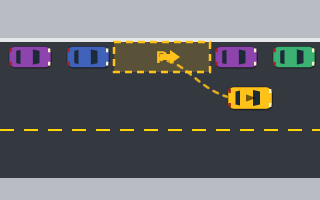
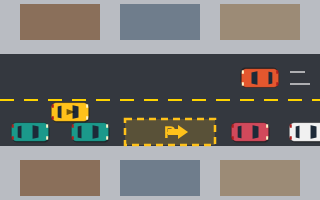
Parallel Parking asks for a smooth reverse arc into a gap between two cars along a curb. On touch, commit to holding the steering button through the first half of the arc, then release so it self-centers, and switch to the other steering button to straighten. Treat each phase as a separate, deliberate press.
Parking Lot and City Parking
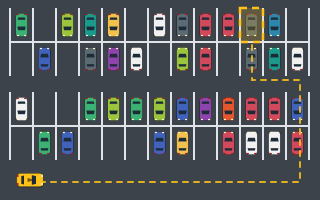
Big scrolling maps like Parking Lot rely on the edge arrow that points toward an off-screen bay. On a small screen, watch that arrow closely while driving. In City Parking, light moving traffic travels along the road; lift off GAS entirely and let friction slow you while you wait for a gap.
Why the page doesn't scroll while you play
When your finger is on the game area or the control buttons, page scrolling is blocked. Without that, pressing a button and sliding your thumb slightly would drag the whole page around mid-park. Scrolling works normally anywhere else on the page.
How touch buttons are usually built
Many modern HTML5 games use Pointer Events for on-screen controls. A single "pointer" event model covers fingers, mouse and pen, which is why one set of buttons can serve touch and mouse players alike. A button is marked as held when a pointer goes down on it and released when that pointer lifts or leaves, and the game loop reads the held state every frame just as it would read a held key. Multi-touch works because each finger gets its own pointer, so steering and GAS can be held at once.
Quick fixes for common touch problems
- Car keeps reversing at the end of a park: tap BRAKE / REV instead of holding it.
- Turns feel too wide: ease off GAS before steering.
- Thumbs hide the car: rest them lower on the buttons.
- Steering "does nothing": the car is stopped; roll a little first.
For a wider list of habits that cost points on any device, see common parking game mistakes. If you also play on a computer, the keyboard controls guide explains the extra brake key you get there.